UGC Scripts: Examples, Templates & How to Write Your Own
UGC Scripts: Examples, Templates, and How to Write Your Own
Learn how to write UGC scripts with 8 complete examples, 6 reusable templates, script anatomy, and a practical hook-to-CTA workflow.
By ViralSnap Team•18 min read•Updated Sep 2026
The difference between a loose video idea and a usable UGC script is what happens between the opening line and the CTA.
A complete script gives the creator a situation to enter, a product moment to show, and enough evidence or experience to make the message feel grounded. It also leaves room for a natural delivery. The words matter, but so do the scenes, actions, on-screen text, and order of information.
This guide includes eight complete UGC script examples, six reusable frameworks, and a practical way to write an original version from a reference video.
What is a UGC script?
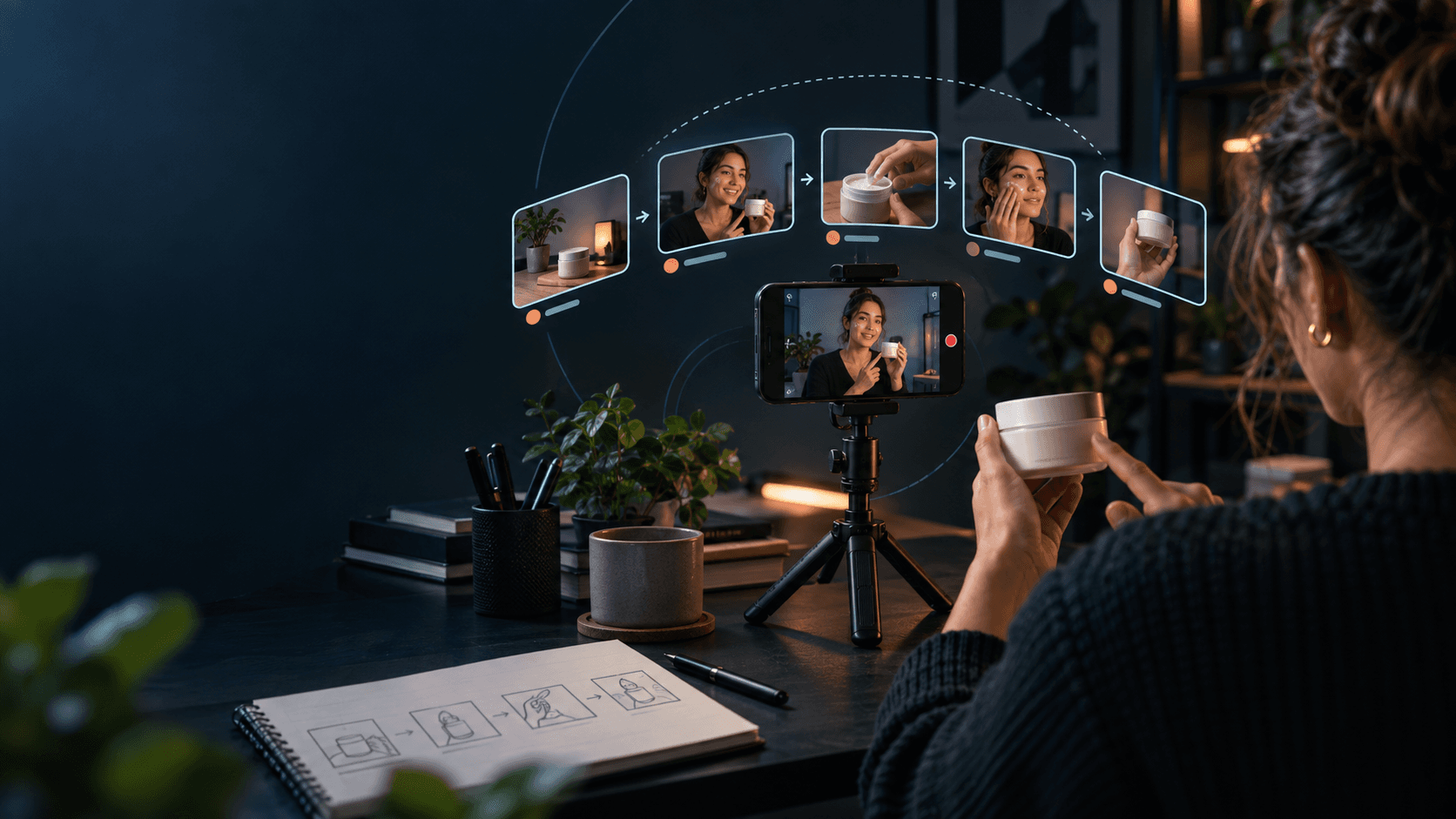
A UGC script is a short-form video plan that combines spoken lines with the visual moments supporting them. It may be written for a creator, a customer-style ad, a product demo, or an organic Reel. It does not have to sound polished or corporate. A useful script gives someone a clear thought to say and a believable action to perform.
The strongest UGC video scripts answer four questions quickly:
What situation is the viewer seeing?
What product or idea enters the situation?
What can the creator show, explain, or honestly report?
What should the viewer do next?
The examples below use different structures because a skincare routine, a phone accessory, and a project-management app do not need the same story.
Learn a repeatable workflow for observing reference videos, extracting structures, and turning those observations into original content experiments.
Aug 17, 2026
Start Free
Understand the structure behind creator videos.
Analyze hooks, pacing, scenes, and storytelling patterns with AI.
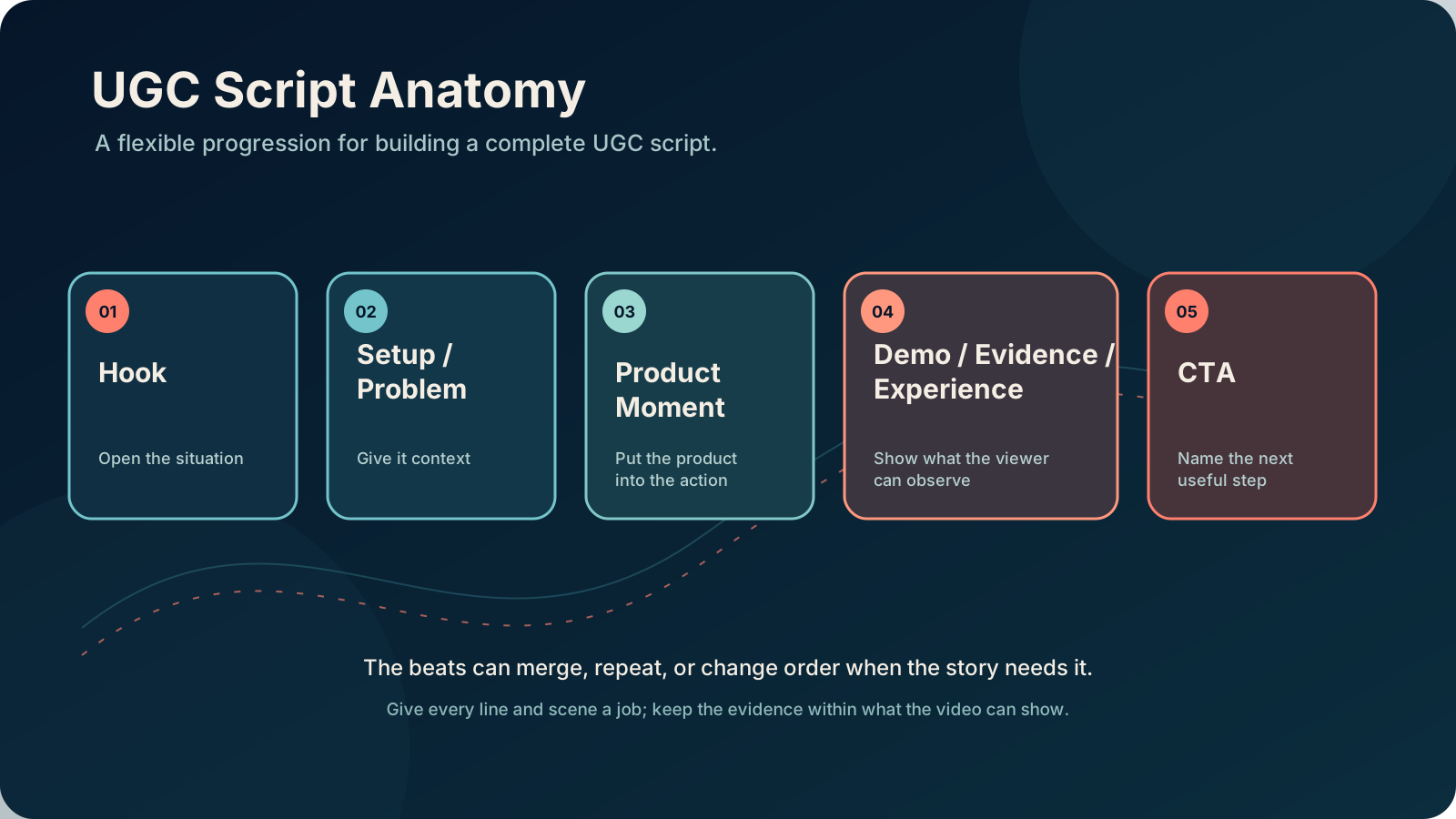
UGC script anatomy: five useful beats
There is no single formula every creator needs to follow. Still, most complete scripts become easier to write when you can name the job of each beat.
1. Hook
The hook is the first spoken line, visual action, or piece of on-screen text. Its job is to establish the situation and create a reason to keep watching. It is one part of the script, not the whole script.
If you need more opening-line inspiration, see our guide to 100 UGC hooks. For this article, the hook only matters in relation to what follows it.
2. Setup or problem
The setup gives the opening some context. What was the creator trying to do? What friction, question, or decision brought the product into the scene? A specific situation is easier to believe than a broad claim about everyone’s problem.
3. Product moment
This is where the product appears as part of the action. The creator opens it, uses it, compares it, adds it to a routine, or shows the relevant feature. The product moment should answer the setup instead of appearing as an unrelated cutaway.
4. Demo, evidence, or experience
A viewer needs something to observe. That might be a screen recording, a before-and-after arrangement, a texture, a fit check, a side-by-side comparison, or a personal observation. Keep the evidence limited to what the video can actually show.
5. CTA
The CTA gives the video a next step: try the routine, view the product, save the idea, or learn more. It can be direct, but it should match the content that came before it. A gentle recommendation may fit a personal routine better than a hard sell.
Think of these beats as a flexible map. Some scripts merge the setup and problem. A testimonial may begin with the experience. A comparison may alternate between two products. The point is to give each piece of information a job, not to force every video into identical timing.
How to choose a UGC script structure
Start with the communication job, not the product category. Ask what you want the viewer to understand by the end of the video.
Show how something works: choose Demo → Benefit. Put the product in motion early, then connect the visible action to the task it helps with.
Solve a visible problem: choose Problem → Solution. Show the friction first, introduce the product as the response, and demonstrate the change.
Share an experience: choose Experience → Proof. Begin with a real use case, then show the detail, artifact, or routine that supports the observation.
Document a point of view: choose POV → Product Moment. Let the situation or story lead, then bring in the product at the moment it becomes relevant.
Address a concern: choose Objection → Resolution. Name the decision barrier, test it in a concrete scene, and report what the test showed.
Show a product in daily use: choose Routine → Product Integration. Place the product in a repeatable sequence instead of describing it in isolation.
Help viewers choose between options: use a comparison variation. Show the same job with both options and make the trade-off visible.
Show a change over time or between states: build in before-and-after proof. Film the starting state, the product action, and the resulting state without stretching the result beyond what is visible.
These structures can overlap. A routine may also solve a problem. A POV story may end with a comparison. Choose the dominant job, then borrow only the beats the story needs.
8 complete UGC script examples
These are original examples written to demonstrate full progression. Replace the product details, wording, scenes, proof, and CTA with facts you can support.
1. Product demo script: a compact travel steamer
Hook — spoken to camera: “This shirt was going into my suitcase wrinkled, and I had about five minutes to fix it.”
Scene: Hold up the shirt beside an open suitcase. On-screen text: “Five-minute packing save?”
Setup: “I normally end up hanging it in the bathroom and hoping the shower does enough. This time I brought this small steamer instead.”
Product moment: Place the steamer on the bed, fill it according to the product instructions, and turn it on. Keep the first puff of steam in frame.
Demo and experience: “I’m starting at the collar, then moving down the front in slow passes. The awkward part is around the buttons, so that’s where I’m spending the extra second. You can see the fabric lying flatter as I move across it.”
CTA: “If you pack at the last minute too, save this setup for your next overnight bag.”
2. Problem-solution script: a desk cable organizer
Hook — visual action: Drop three charging cables onto a cluttered desk. Spoken line: “Every time I moved my laptop, one of these came with it.”
Setup: “The problem wasn’t that I needed more cables. I needed them to stay where I actually use them: beside the monitor, not behind the desk.”
Product moment: Show the organizer’s adhesive backing and attach it to the side of the desk. Add the cables one at a time.
Demo: “I’m giving the long cable the center slot because it reaches the laptop, and the shorter ones go on either side. Before this, the cable ends dropped behind the desk. Now I can pick up the laptop and reconnect it without looking for them.”
On-screen text: “Place it where the cable naturally falls.”
CTA: “Try this kind of setup with the cables you already own before buying another one.”
3. Testimonial / personal experience script: a meal-planning app
Hook — direct-to-camera: “Sunday meal planning used to become a list I stopped looking at by Tuesday.”
Setup: Show a handwritten list, then the app’s empty week view. “I wanted a plan that told me what to make and kept the shopping details in the same place, without turning dinner into a second job.”
Product moment: Add three meals to the week and open the ingredient view. Blur private information if needed.
Experience: “I’m keeping the first version simple: two meals I already know, one new recipe, and one night for leftovers. Now I can see the ingredients together before I shop. If the week changes, I move a meal instead of rewriting the whole page.”
CTA: “If your meal plan disappears after day two, test a smaller week like this one.”
4. POV / story-driven script: noise-reducing headphones for a commute
Hook — on-screen text over a train-platform shot: “POV: you have a presentation in an hour and the commute is louder than your thoughts.”
Story setup: “I had ten minutes to review my notes, but the platform announcements, brakes, and conversations were all competing for attention.”
Product moment: Put on the headphones, open the controls, and switch to the available noise-control mode.
Demo and experience: Cut from the platform to a close-up of the notes. “The difference I noticed was less background sound to sort through. I could hear my practice track and read the first page at a comfortable volume.”
Story resolution: Show the creator entering the train and closing the notes. “I rehearsed the opening once more when I arrived. That short review window was enough to feel prepared.”
CTA: “If you have a commute before a big meeting, give yourself one focused review window.”
5. Routine script: a simple evening skincare step
Hook — spoken while washing the face: “I wanted one evening step I could actually repeat, not a shelf full of steps I forgot to use.”
Setup: Show cleanser, moisturizer, and the featured product in a row. “So I put this product between cleansing and moisturizer for one weeknight routine. The goal is a routine I can keep, not a dramatic bathroom-counter makeover.”
Product moment: Apply the product according to its directions, showing the amount and texture. Add on-screen text: “Cleanse → featured step → moisturize.”
Experience: “I use a small amount, finish putting away my contacts while it absorbs, and then apply moisturizer. That pause gives the step a place in my evening. I can show you the routine I’m repeating; the rest depends on your skin and the product directions.”
Visual close: Place the product back beside the moisturizer for the next evening.
CTA: “If your routine keeps getting too complicated, choose one step and give it a real place in the evening.”
6. Unboxing / first-impression script: a countertop coffee brewer
Hook — visual action: Open the box and pull out the brewer before showing the logo. “This is the first thing I’m checking: can I set it up without turning the counter into a parts department?”
Setup: Lay out the brewer, carafe, filter basket, and instructions. “I’m starting with the questions I would ask before using it every morning.”
Product moment: Follow the setup steps on camera. Show where the water goes, where the filter sits, and how the carafe locks in.
First use: “The controls are on the top, the basket lifts out from the front, and the cord reaches the outlet behind my grinder. I’m running the first cycle with water only, then I’ll make one cup.”
Experience: Show the brewed coffee being poured. “The workflow is fill, add the filter, press the brew button, and clean the removable parts. After one setup, I know how it fits on my counter and what I would clean after breakfast.”
CTA: “If you are filming a first impression, show the setup questions that matter in your own kitchen.”
7. Objection-handling script: a lightweight everyday backpack
Hook — spoken while weighing the empty bag in hand: “My question was not ‘does this backpack look good?’ It was ‘will I still want to carry it after I fill it?’”
Objection setup: “I usually avoid bags with lots of compartments because they can be awkward to pack. So I’m testing the three things that matter for my workday: laptop fit, bottle storage, and access to the small items.”
Product moment: Put the laptop in its sleeve, add a water bottle to the side pocket, and place keys and earbuds in the front compartment.
Demo and response: “The laptop slides in without forcing the zipper. The bottle stays upright when I set the bag down. And the front pocket keeps the small items beside the notebook instead of hiding them at the bottom.”
Decision: “For this commute, I can reach everything without unpacking the bag. I would choose a different pack for heavy gear or a long hike.”
CTA: “When you test a bag, pack the things you carry on an ordinary day.”
8. Comparison script with before-and-after proof: two note-taking tools
Hook — split-screen visual: Put a paper notebook on one side and a notes app on the other. “I used both for the same meeting because the better tool depends on what happens after the meeting.”
Setup: “The notebook is quick when I need to sketch. The app is easier when I need to search, share, or turn a note into a task. I’m comparing the handoff, not picking one universal winner.”
Before: Show the state immediately after the meeting: three loose notebook points, a separate phone reminder, and no clear owner beside the action item. “This is what I had before I organized the notes.”
Product moment: Write the same three points on paper, then enter them into the app. Turn one point into a task and add its owner. Show the paper and app side by side.
After-and-before comparison: “The paper version is faster for the rough diagram. The app version leaves me with one searchable note and an action item I can send without taking a photo. The visible change is small: one loose reminder became a named task beside the meeting notes.”
Decision: “I’m keeping paper for early sketches and using the app for notes that need to move to someone else. That split matches the jobs better than asking one tool to do everything.”
CTA: “Compare products by the handoff your viewer needs, and show the starting state and the finished one.”
6 reusable UGC script templates
These six frameworks follow different communication jobs. Use the brackets as prompts, then write the lines in your own voice.
1. Problem → Solution
Best for: a visible frustration with a clear product response.
Problem: “When I [specific activity], [visible problem] keeps happening.”
Context: “I had tried [old workaround], but the part that still bothered me was [specific friction].”
Solution: “So I brought in [product] at the moment [problem] usually starts.”
Proof: Show [action] and the visible change in [object, screen, or setup].
CTA: “If [audience situation] looks familiar, try [small next step].”
2. Demo → Benefit
Best for: a feature or physical action that is easiest to understand on camera.
Opening action: Show [product] doing [specific action].
Spoken context: “I’m using this for [task] because [constraint].”
Demo: Show [two or three steps] without cutting away from the important product moment.
Benefit: “That means I can [practical task or decision] without [old friction].”
CTA: “Save this if you need [use case] in your own setup.”
3. POV → Product Moment
Best for: a story-led video where the product becomes relevant inside a real situation.
POV setup: “POV: [specific situation] and [pressure, desire, or constraint].”
Story beat: Show [scene] and say what the creator is trying to do.
Product moment: Bring in [product] when [turning point] occurs.
Experience: Show or describe [observable detail] as the situation continues.
CTA: “For [similar situation], build in [useful next step].”
4. Experience → Proof
Best for: a personal-use video where the creator can show a routine, artifact, or specific observation.
Experience: “I started using [product] when [context].”
Use: Show [how, when, or where] you used it.
Proof: Show [screen, before-and-after state, repeated routine, fit check, or other concrete detail].
Meaning: “For my situation, that changed [specific task or decision].”
CTA: “If your situation is [matching context], try [reasonable experiment].”
5. Objection → Resolution
Best for: a concern about size, setup, comfort, compatibility, price, or another buying decision.
Objection: “My concern about [product category] was [specific concern].”
Test: “I checked it by [concrete task].”
Evidence: Show [measurement, fit, setup, side-by-side, or use moment].
Resolution: “For [specific situation], [what the test showed].”
Boundary and CTA: “If you need [different use case], check [relevant criterion] before choosing.”
6. Routine → Product Integration
Best for: a product that earns a repeatable place in a morning, evening, work, fitness, or household routine.
Existing routine: “[Step A] → [Step B] is how I normally handle [task].”
Gap: “The part I kept skipping was [specific gap].”
Integration: “I added [product] between [step] and [step] because [reason].”
Show it: Film the product in the routine, including [amount, setting, timing, or action].
Close: “This fits my routine when [condition]. If you have the same gap, test [adaptation].”
How to write a UGC script from a reference video
A creator video can teach you a structure without becoming something to reproduce. The useful question is not “How do I make this exact video?” It is “What sequence of decisions makes this format understandable?”
Use this process:
Record the observable beats. Note the opening move, setup, product moment, evidence, scene changes, pacing, voiceover, on-screen text, and CTA. Describe what happens; do not guess that one beat caused the video’s performance.
Name the communication job. Is the video demonstrating a feature, resolving a concern, documenting an experience, comparing options, or placing a product in a routine?
Change the situation. Move from the original creator’s setting to your audience’s real context. A travel-packing scene may become a Monday commute; a beauty tutorial may become a short evening routine.
Change the substance. Write new wording, use your product’s actual details, choose evidence you can show, and speak from your own point of view.
Rebuild the scenes. Keep the useful progression, but change the framing, props, order of actions, demonstrations, and visual language where your product requires it.
Choose a matching CTA. Invite the viewer to take the next step that fits your script. Do not add a promise the body of the video has not supported.
The principle is simple: learn the structure, change the substance. Change the situation, wording, product context, evidence, point of view, scenes, and CTA. That gives you a starting point for an original video rather than a near-copy of someone else’s work.
Where ViralSnap fits in the workflow
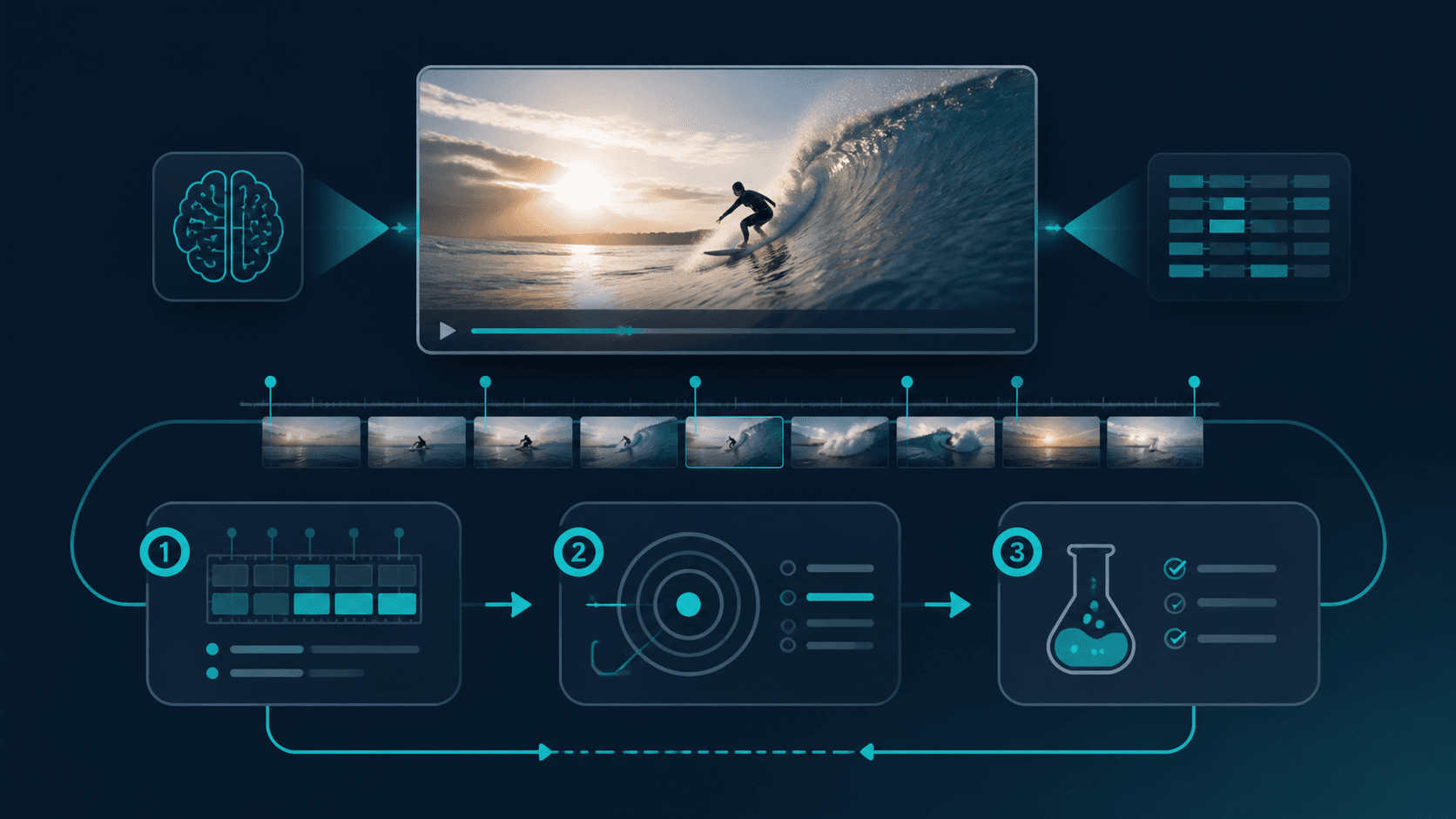
If you already have a supported public Instagram Reel that expresses the kind of creative structure you want to study, ViralSnap can help you examine the observable mechanics: the hook, script structure, pacing, scenes, voiceover, on-screen text, product moments, and CTA patterns.
The workflow is:
Supported public Instagram Reel → Analyze → Understand observable creative mechanics → Product-specific rewrite or storyboard draft → Save to History
That output is a starting draft for your product. Review the wording against your product truth, then make the production decisions a real creator and team still need to make.
FAQ about UGC scripts
How long should a UGC script be?
Write for the number of beats your idea needs, not a fixed word count. A simple demo may need a hook, one action, and a CTA. A testimonial or comparison may need more room for context and evidence. Read the script aloud and cut any line that does not move the viewer to the next useful moment.
Should a UGC script include every shot?
It should include the shots needed to understand the message, especially the product moment and proof. You do not need to specify every camera movement. A spoken line, a clear scene action, and a note about on-screen text are usually enough to guide recording while leaving the creator room to perform naturally.
What is the difference between a UGC script and a UGC ad script?
A UGC script describes the creator’s spoken and visual progression. A UGC ad script uses that progression for a paid placement and may need a tighter product introduction, clearer offer context, or a more direct CTA. The same structure can support either, but the final claims and CTA should match the placement.
How do I make a UGC script sound less scripted?
Write the thought before polishing the sentence. Use the words a creator would say while performing the action, keep one idea per line, and replace broad praise with a detail the viewer can see. Then record a rough take and edit any phrase that feels unnatural in your mouth.
Can I use a creator video as a reference for my own script?
Yes. Study its observable structure—such as the order of scenes, product moment, pacing, evidence, and CTA—then change the situation, wording, product context, point of view, scenes, and proof. The result should be a new script for your own audience and product.
Final checklist for your next UGC script
Before recording, check that your script has:
a clear situation in the first beat;
a product moment connected to that situation;
one demonstration, observation, or piece of evidence you can honestly show;
spoken lines that sound natural when read aloud;
scenes and on-screen text that support the spoken message;
a CTA that matches the viewer’s next decision; and
original wording, context, evidence, scenes, and point of view.
A UGC script does not need to sound like an advertisement from the first word. It needs to make the next moment clear. Start with a real situation, show the product doing its relevant job, and let the viewer see why the product belongs in that story.